


To access Gmail, just open your browser and type “www.gmail.com” in the address bar. Press Enter, and you’ll be taken to the Gmail login page. If you already have an account, click on “Sign in,” enter your email and password, and you’re good to go. If you don’t have an account, click on “Create account” and follow the steps to set one up.
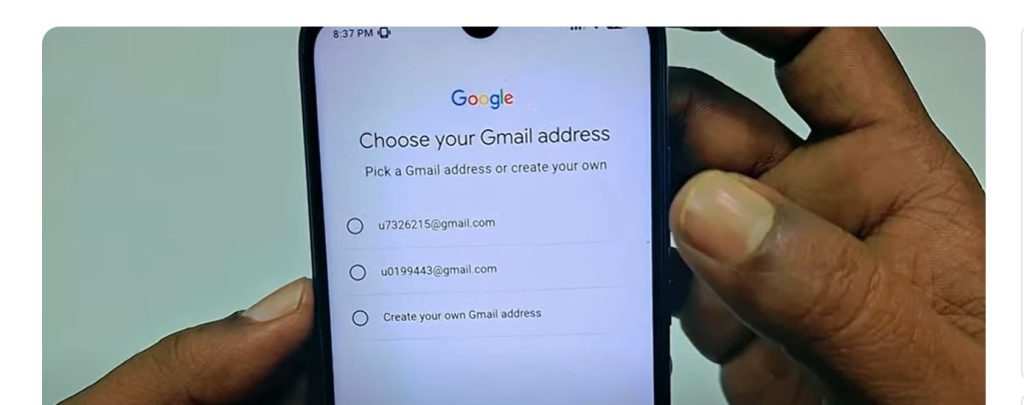
This guide provides an in-depth exploration of the process to create a Gmail account, covering all necessary steps, options, and considerations, especially relevant as of March 25, 2025. It expands on the direct answer by including detailed procedures, platform-specific instructions, and additional insights for users, ensuring a thorough understanding for both novice and experienced individuals.
Contents
Overview of Gmail Account Creation
Gmail, a widely used email service integrated with Google’s ecosystem, requires the creation of a Google Account to access its features. This process, as outlined in official Google documentation, is designed to be user-friendly, with options for personal, child, or business accounts. The account creation not only enables email functionality but also grants access to other Google services like YouTube, Google Drive, and Google Play, making it a central hub for digital activities.
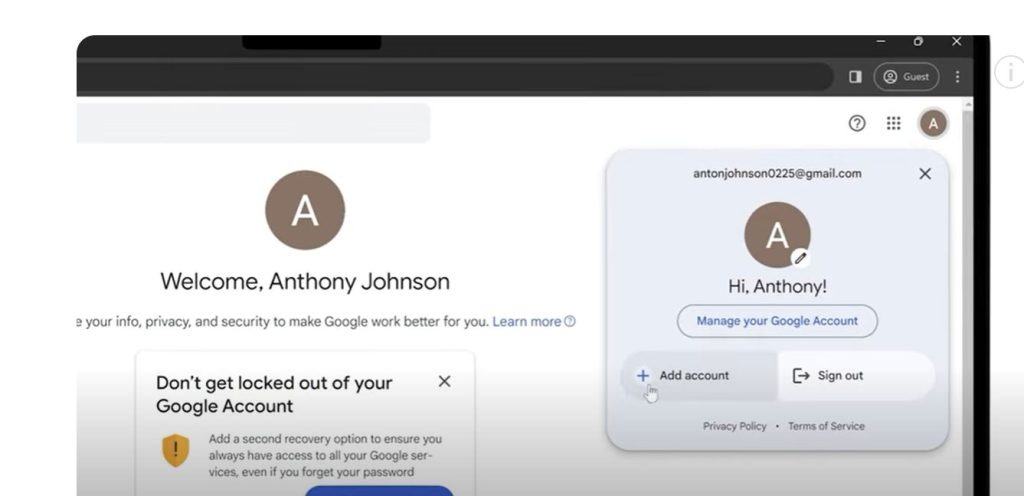
Detailed Steps for Account Creation
The primary method to create a Gmail account begins at the Google Account sign-in page, accessible at https://accounts.google.com/signin. Here are the steps based on the latest available information:
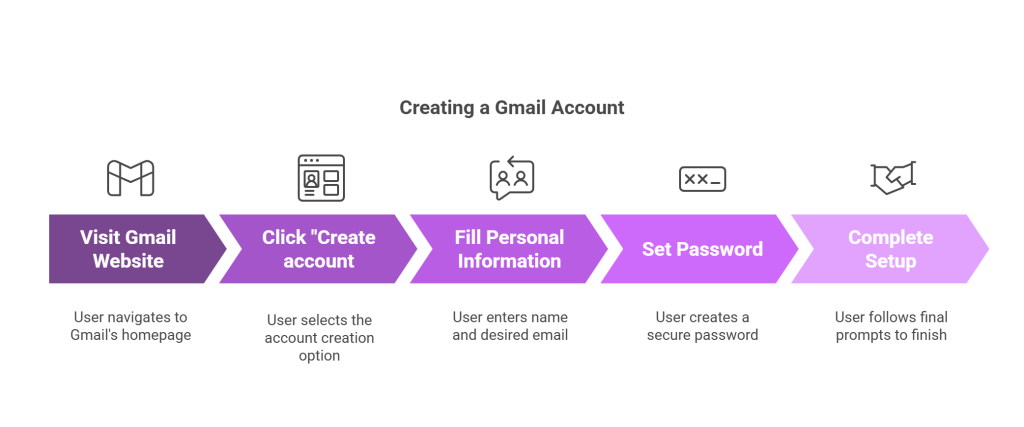
- Access the Sign-In Page: Navigate to the URL and ensure you are signed out of any existing Gmail account to avoid conflicts. This is crucial for a smooth setup process, as noted in Google’s support resources.
- Initiate Account Creation: Click on “Create account” to start the process. This action directs you to a form where you select the account type from a dropdown menu, with options including personal use, child accounts, or work/business.
- Fill in Required Information: Follow the on-screen prompts to enter your first and last name as you want them to appear in your email account. Next, choose a username, which will form the email address (e.g., [email protected]). Google checks availability, and if taken, suggests alternatives or allows you to try variations.
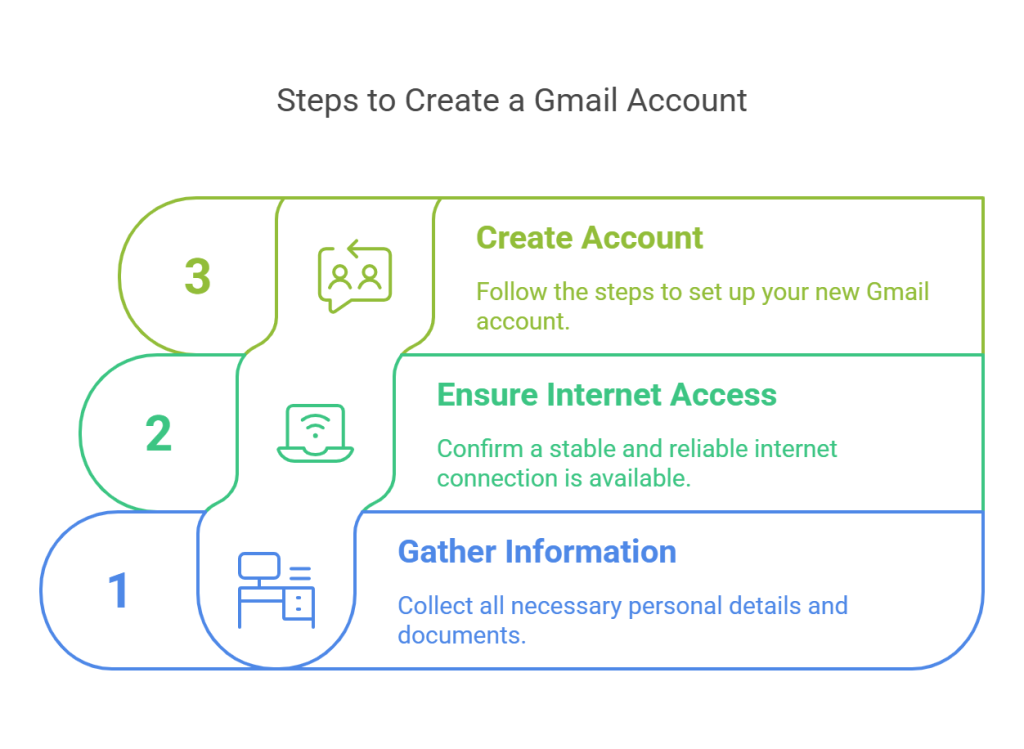
- Set a Secure Password: Enter a strong password, recommended to be at least 8 characters long, including letters, numbers, and symbols, and confirm it to ensure accuracy.
- Optional Verification: You may be prompted to add a phone number for verification, which enhances account security and aids in recovery if needed. However, as detailed below, this step is optional, and you can proceed with a recovery email instead.
- When you create a Gmail account, you’ll need to provide your date of birth and gender.
- For your date of birth, Google asks this to make sure you’re old enough to use the service (usually 13 or older). You’ll select the day, month, and year from a drop-down menu.
- As for gender, it’s optional. You can choose Male, Female, or Rather not say if you don’t want to disclose it.
- After filling these out, you can move on to the next steps in creating your account!
- Complete Setup: Provide additional details such as your birthdate (you must be at least 13 years old for a personal account) and, optionally, gender. Review the information, agree to the terms, and submit to finalize the account creation.
Creating a Gmail Account Without a Phone Number
For users concerned about privacy, it is possible to create a Gmail account without providing a phone number. This option is particularly relevant given the increasing focus on data protection. The process involves using a recovery email address, which serves as an alternative verification method. Here are
platform-specific steps based on recent guides:
| Platform | Steps | Notes |
|---|---|---|
| Android | 1. Launch Settings > Passwords & accounts > Google > Manage your Google Account > Add another account > Create account (For my personal use) > Enter details > Add recovery email > Tap Skip for phone number > Review and confirm. | Use a recovery email address. |
| iOS | 1. Launch Settings > Mail > Accounts > Add Account > Google > Create account > Enter details > Add recovery email > Tap Skip for phone number > Review and confirm. | Use a recovery email address. |
| Desktop | 1. Open browser (use Incognito mode if signed in elsewhere) > Navigate to https://mail.google.com > Click Create account > Enter details > Add recovery email > Select Skip for phone number > Review and confirm. | Recommended to use Incognito mode for privacy. Tip: Learn how to change default Google account at Clean Email. |
Alternative methods include using prepaid phone numbers for temporary verification or virtual phone number apps like Numero (available on iOS and Android) for SMS verification. Free online SMS services like Sakari (https://sakari.io/features/sms-online) or SMSToMe (https://smstome.com/) can also be used, though caution is advised for security reasons.
Considerations for 2025
As of March 25, 2025, recent updates to Gmail focus more on security enhancements rather than changes to the account creation process. Reports from early 2025, such as those from Forbes, highlight Google’s efforts to combat AI-powered phishing attacks, emphasizing the importance of secure account setup, including the use of recovery options. While the core steps remain consistent, users are encouraged to enable two-factor authentication and regularly perform security checkups, as advised in articles like Google Changes Gmail In 2025—Do Not Lose Your Account.
Business and Child Accounts
For business needs, Google recommends Google Workspace, which offers custom email domains (e.g., [email protected]) and additional features like increased storage. This is particularly useful for professional settings, with pricing and plans detailed at Google Workspace Pricing. For child accounts, parental consent is required, and the setup process includes additional safeguards, as outlined in Google’s support documentation.
Security and Best Practices
Given the evolving threat landscape, securing your Gmail account is paramount. Choose a strong, unique password and consider enabling two-factor authentication, especially with the option to use a phone number or recovery email. Google’s support page notes that accounts inactive for two years may be deleted, underscoring the importance of regular use and maintenance, as mentioned in articles from 2023 but still relevant for account management in 2025.
Managing Multiple Accounts
For users with multiple Gmail accounts, tools like Clean Email (https://app.clean.email/?utm_source=Website&utm_campaign=Articles&utm_medium=InText&utm_content=create-gmail-account-without-phone-number-en&utm_term=appcleanemail) offer features such as Screener, Auto Clean, Unsubscriber, and Smart Folders to enhance inbox organization, which can be particularly useful when managing new and existing accounts.
Conclusion
Creating a Gmail account is a simple process that integrates seamlessly with Google’s ecosystem, offering flexibility for personal, child, or business use. By following the outlined steps and considering options like skipping phone number verification with a recovery email, users can tailor the setup to their needs. For the most current and detailed guidance, always refer to official sources like Google’s support page, ensuring a secure and efficient account creation experience in 2025.
Key Citations
- Google Support Create a Gmail account
- Clean Email Create a Gmail account without a phone number
- Google Account Sign In Page
- Google Mail Create Account Page
- Numero iOS App for Virtual Numbers
- Numero Android App for Virtual Numbers
- Sakari Online SMS Service
- SMSToMe Free Online SMS Service
- Clean Email App for Inbox Management
- Google Workspace Pricing and Plans
- Clean Email How to Change Default Google Account
- Google Changes Gmail In 2025—Do Not Lose Your Account
