


Yes, you can wrap text around images in SendFox! This guide shows you exactly how to do it with easy, step-by-step instructions. We’ll cover everything from adding your image to making sure your text flows beautifully. Get ready to make your newsletters look professional and engaging!
Can You Wrap Text Around Images in SendFox? Your Proven Guide
Ever looked at a beautifully designed email newsletter and wondered, “How did they get the text to flow so nicely around that picture?” If you’re using SendFox (or thinking about it!), you might be asking yourself, “Can you wrap text around images in SendFox?” It’s a common question because it makes your emails look so much more polished and professional. But often, trying to get this layout just right can feel a bit tricky, leaving you scratching your head.
Don’t worry, it’s not as complicated as it seems! This guide is here to break it all down for you. We’ll walk through the simple steps to achieve that professional text-wrap effect in your SendFox campaigns. By the end, you’ll feel confident making your emails look exactly how you want them to.
Contents
Why Wrapping Text Around Images Matters
Before we dive into the “how,” let’s quickly touch on the “why.” Wrapping text around an image isn’t just about making things look pretty. It’s a smart design choice that can:
- Improve Readability: It breaks up large blocks of text, making your emails easier to scan and digest.
- Enhance Engagement: Visually appealing emails keep readers interested for longer.
- Highlight Key Information: You can strategically place images next to important text to draw attention.
- Professional Appearance: It makes your brand look more polished and trustworthy, just like the big players.
Step-by-Step: Wrapping Text Around Images in SendFox
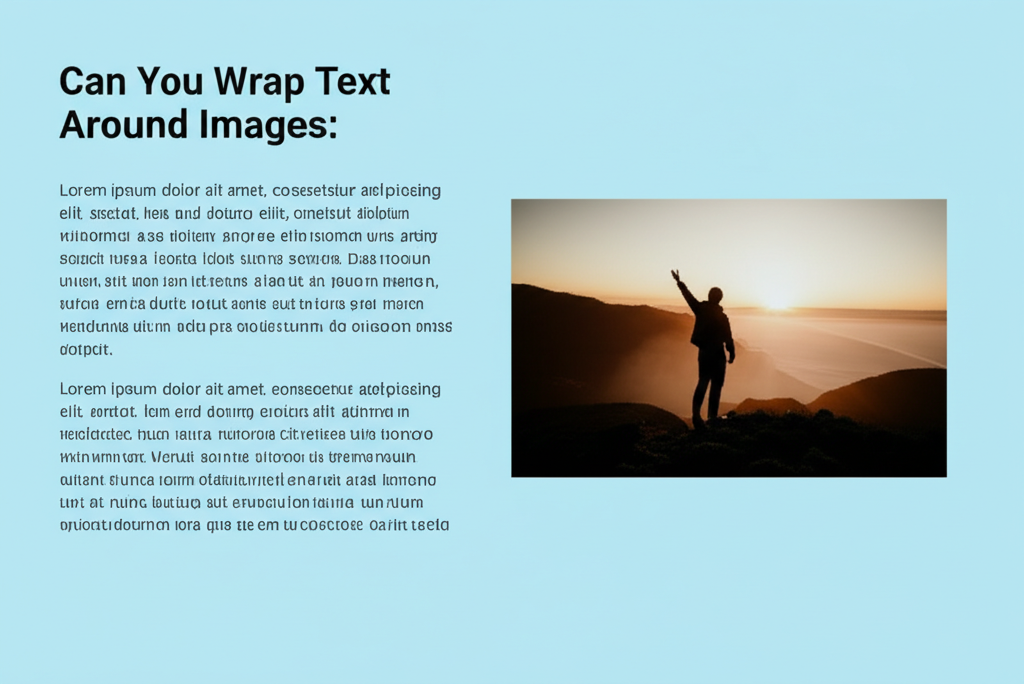
Let’s get this done! Follow these simple steps to wrap text around your images in SendFox. We’ll use the SendFox editor, which is designed to be user-friendly for everyone.
Step 1: Access Your Email Campaign in SendFox
First things first, log in to your SendFox account. Navigate to the “Campaigns” or “Emails” section and either start a new email or open an existing draft. This is where all the magic will happen.
Step 2: Add Your Image
Inside the email editor, find the spot where you want to place your image. You’ll typically see an “Image” block or a button to insert an image. Click on it. SendFox will then prompt you to upload an image from your computer or select one from your media library. Choose your image and click “Insert” or “Add.”
Why this matters: Getting the image into your email is the first crucial step before you can even think about wrapping text around it.
Step 3: Select the Image and Access Styling Options
Once your image is in the email, click directly on it. You should see a toolbar or a sidebar appear with various options for styling your image. Look for settings related to alignment, size, and specifically, layout or wrapping options.
Tip: If you don’t see options immediately, try clicking the image a second time or look for an “Edit” or “Settings” icon associated with the image block.
Step 4: Choose the Alignment and Wrap Settings
This is the key step! You’ll usually find alignment options like “Left,” “Center,” and “Right.” To wrap text around your image, you need to select either “Left” or “Right” alignment for the image.
- Left Alignment: This will place the image on the left side of your email content, and the text will flow around it to the right.
- Right Alignment: This will place the image on the right side, with text flowing around it to the left.
Once you select “Left” or “Right” alignment, the SendFox editor should automatically start wrapping the text that follows the image. If you’re using a dedicated image block with text options, you might see a specific “Wrap Text” toggle or setting.
Why this matters: Alignment tells the email software where to position the image, and the “wrap” instruction tells it to let the text flow into the available space.
Step 5: Adjust Spacing (Padding)
Your text might look a little too close to the image, making it hard to read. Most email editors, including SendFox, allow you to add “padding” or “spacing” around your image. Look for options like “Spacing,” “Margin,” or “Padding” in the image styling settings.
You’ll often be able to set different spacing for the top, bottom, left, and right sides of your image. Adding a few pixels of space to the left and right of the image (if the text is on that side) will make a big difference in readability.
Tip: Start with 5-10 pixels of spacing on the sides where the text is wrapping. You can always adjust it until it looks just right.
Step 6: Add Text to Wrap
Make sure you have text after you’ve inserted and aligned your image. If you insert an image and then start typing, the text will naturally wrap. If you’re adding an image to existing text, you might need to adjust your text blocks or add new ones to ensure the text fills the space next to the image.
Good to know: The text will only wrap if there’s enough space next to the image. If your image is very wide or you’re using a very narrow column, text wrapping might not occur as expected.
Step 7: Preview and Test Your Email
This is the most important step! Before sending your email to your list, always preview it. SendFox usually has a “Preview” option that lets you see how the email will look on different devices (desktop and mobile).
Pay close attention to how the text wraps around the image. Does it look clean? Is it easy to read? Are there any awkward breaks or gaps? Test it on your own inbox too, sending a test email to yourself and a colleague if possible. This catches any rendering issues specific to certain email clients.
Why this matters: What looks good in the editor might not always appear perfectly in someone’s inbox. Previewing is your safety net!
Extra Tips for Beautifully Wrapped Text
You’ve mastered the basics! Now, let’s elevate your email design with a few extra tips:
- Use Responsive Images: Ensure your images are sized appropriately for email. Overly large images can cause problems. Ideally, use images that are around 600px wide for standard emails.
- Keep Text Concise: While wrapping text is great, long, unbroken paragraphs next to an image can still be overwhelming. Break up your text with short sentences and paragraphs.
- Consider Image Placement: Experiment with placing images on the left versus the right to see what works best with your content. Sometimes, alternating sides can add visual interest.
- Mobile-First Thinking: Most people read emails on their phones. While SendFox is generally good at making emails responsive, check your preview on mobile. Sometimes, text might stack neatly above or below the image on smaller screens, which is perfectly fine!
- Alt Text is Crucial: Always add “alt text” to your images. This is the text that appears if the image doesn’t load, and it’s also important for screen readers and SEO.
Common Mistakes to Avoid When Wrapping Text
Even with a straightforward process, a few common pitfalls can trip you up. Be mindful of these:
- Not Aligning the Image: If you don’t set the image to left or right alignment, the text won’t wrap. It will just appear below the image.
- Ignoring Spacing: Text jammed right up against an image looks unprofessional and is hard to read. Always add padding.
- Using Images That Are Too Wide: A very wide image will leave very little room for text to wrap, or it might push the text below the image entirely, especially on mobile.
- Forgetting to Preview: This is the biggest mistake! Always test before you send to catch layout errors.
- Not Having Enough Text: If you only have a sentence or two after your image, it might not look like “wrapping” but rather just text appearing next to it. Ensure you have a decent amount of content to fill the space.
Frequently Asked Questions (FAQ)
Here are some common questions beginner SendFox users have about images and text:
Q1: Do I need a special SendFox plan to wrap text around images?
A1: No, the ability to wrap text around images is a standard feature within the SendFox email editor, available on all plans, including the free tier.
Q2: How many subscribers can I start with on SendFox?
A2: SendFox offers a generous free plan that allows you to have up to 1,000 subscribers. You can start building your list and sending emails right away without any cost.
Q3: Can I automate emails with SendFox?
A3: Yes! SendFox allows you to set up automated email sequences (also known as autoresponders or drip campaigns) to welcome new subscribers, nurture leads, or deliver content over time. This is a powerful way to save time and engage your audience.
Q4: What if my text doesn’t wrap when I align the image?
A4: Ensure there is text following the image in the same content block. Also, check that the image isn’t too wide for the available space, which can prevent wrapping, especially on mobile views. Always preview to see how it renders.
Q5: Can I use different image sizes?
A5: Yes, SendFox usually allows you to resize images within the editor. However, it’s best to use images that are already optimized for web and email (around 600px wide) to ensure they display correctly and don’t slow down your email loading time.
Q6: Is there a limit to how much text I can wrap around an image?
A6: While there’s no strict limit on the amount of text, keep in mind that very long, dense paragraphs next to an image can reduce readability. Aim for clarity and break up your content for the best user experience.
Conclusion: You’ve Got This!
So, to answer your question directly: yes, you absolutely can wrap text around images in SendFox! And as you’ve seen, it’s a straightforward process that can significantly boost the professional look and readability of your email campaigns.
By following these steps – adding your image, aligning it to the left or right, adjusting spacing, and always previewing – you can create emails that not only look great but also keep your subscribers engaged. Don’t be afraid to experiment and find what works best for your brand and content.
Now, go ahead and try it! Log into SendFox, pick a campaign, and add an image. You’ll be wrapping text like a pro in no time. Happy emailing!
