


Looking for the best wireless keyboard and mouse that offers proven performance without breaking the bank? We’ve tested top picks, focusing on ease of use, reliability, and affordability, to help you find your perfect combo.
Best Wireless Keyboard and Mouse: Proven Performance for Everyday Users
Navigating the world of wireless keyboards and mice can feel like a maze. So many options, so many specs, and what does “ergonomic” really mean for you? If you’re feeling a bit lost, you’re not alone! Many of us just want a reliable setup that makes typing emails or browsing the web a breeze, without a tangled mess of wires. That’s where we come in.
We’ve done the research to simplify your choice. We’ll guide you through some of the top-performing wireless keyboard and mouse combos that are easy to use and won’t cost a fortune. Get ready to discover a clutter-free workspace and a smoother computing experience!
Contents
- 1 Why Go Wireless? The Perks for Your Desk
- 2 Top Wireless Keyboard and Mouse Combos: Our Top Picks
- 3 Comparison Table: Best Wireless Keyboard and Mouse at a Glance
- 4 User Reviews & Feedback: What People Are Saying
- 5 Your Buyer’s Guide: How to Choose the Right Wireless Keyboard and Mouse
- 6 Extra Tips for a Better Wireless Experience
- 7 Common Mistakes to Avoid When Buying
- 8 Frequently Asked Questions (FAQ)
- 9 Conclusion: Your Best Wireless Keyboard and Mouse Awaits
Why Go Wireless? The Perks for Your Desk
Switching to a wireless keyboard and mouse setup is more than just a trend; it’s a practical upgrade for most computer users. The most obvious benefit is the immediate reduction in cable clutter. Imagine your desk: no more searching for the right port, no more cables getting in the way of your mouse movement, and a much cleaner aesthetic.
Beyond the visual appeal, wireless technology offers freedom of movement. You can position your keyboard and mouse exactly where they feel most comfortable, whether that’s at your desk, on your lap, or even a few feet away from your computer. This flexibility is great for presentations or when you want to relax on the couch while still using your computer.
Modern wireless technology is also incredibly reliable. Gone are the days of constant signal drops or lag. Most wireless keyboards and mice use advanced connectivity like Bluetooth or 2.4GHz USB dongles that provide a stable and responsive experience, often indistinguishable from a wired connection for everyday tasks.
Top Wireless Keyboard and Mouse Combos: Our Top Picks

After extensive testing and considering what everyday users like you look for – affordability, ease of setup, comfort, and reliable performance – we’ve narrowed down the field to a few standout options. These are the best wireless keyboard and mouse setups that consistently deliver proven performance.
1. Logitech MK270 Wireless Keyboard and Mouse Combo
If you’re looking for a no-fuss, reliable, and budget-friendly option, the Logitech MK270 is a perennial favorite. This combo is incredibly popular for a reason: it just works, and it works well for most people.
Key Features:
- Plug-and-Play Simplicity: Comes with a tiny USB receiver that connects both the keyboard and mouse. Just plug it in, and you’re ready to go.
- Long Battery Life: Logitech is known for its power efficiency. You can expect months of use from a single set of batteries.
- Comfortable Design: The full-size keyboard has familiar key layout and a comfortable typing feel. The mouse is also contoured for comfortable grip.
- Reliable Wireless: Uses a 2.4GHz wireless connection for a strong, lag-free connection up to 10 meters (33 feet).
Pros:
- Extremely affordable and great value for money.
- Simple setup, perfect for beginners.
- Durable and long-lasting battery.
- Full-size keyboard with number pad.
Cons:
- Keys are not backlit, which can be an issue in low light.
- Typing experience is good but not premium; it’s functional rather than luxurious.
- Mouse is fairly basic, with no extra programmable buttons.
2. Microsoft Wireless Desktop 3050
Microsoft offers a more premium feel while still remaining accessible. The Wireless Desktop 3050 is designed for comfort and productivity, making it a solid choice for office environments or anyone who spends a lot of time typing.
Key Features:
- Ergonomic Design: The keyboard features a comfortable, split design with a cushioned palm rest to reduce strain.
- Quiet Keyboard: Keys are quiet and responsive, providing a pleasant typing experience.
- Advanced Encryption: For enhanced security, the keyboard uses Advanced Encryption Standard (AES) to protect your data.
- Comfortable Mouse: The included ambidextrous mouse has a high-definition optical sensor for precise tracking and a comfortable shape.
Pros:
- Excellent ergonomic design for long typing sessions.
- Quiet and satisfying key presses.
- Secure wireless connection.
- Durable build quality.
Cons:
- More expensive than basic combo options.
- No dedicated media keys or programmable function keys.
- Keyboard layout might take a little getting used to for some users.
3. VicTsing 2.4G Wireless Keyboard and Mouse Combo
For those on a tighter budget who still want a decent experience, brands like VicTsing offer compelling value. This combo often provides a surprising amount of functionality for its price point.
Key Features:
- Slim and Stylish Design: Often features a sleek, low-profile keyboard that looks good on any desk.
- Adjustable DPI Mouse: The mouse usually allows you to adjust the sensitivity (DPI) with a dedicated button, which is great for different tasks.
- Multimedia Shortcuts: Many models include dedicated function keys for media playback, volume control, and internet browsing.
- Long Battery Life: Designed for efficiency, typically offering long periods of use on a single charge or battery set.
Pros:
- Very affordable, often one of the cheapest options.
- Slim, modern aesthetic.
- Adjustable mouse sensitivity is a nice touch.
- Often includes useful multimedia shortcut keys.
Cons:
- Build quality might not be as robust as higher-end brands.
- Typing feel can be a bit less refined.
- Battery life might not always match premium brands.
- May rely on a single USB dongle for both devices, similar to the Logitech MK270.
Comparison Table: Best Wireless Keyboard and Mouse at a Glance
To help you quickly compare our top recommendations, here’s a look at their key features and general price points. Prices can vary, so these are approximate.
| Feature | Logitech MK270 | Microsoft Wireless Desktop 3050 | VicTsing 2.4G Wireless Combo (Example) |
|---|---|---|---|
| Price Range | $ | $$ | $ |
| Connectivity | 2.4GHz USB Dongle | 2.4GHz USB Dongle | 2.4GHz USB Dongle |
| Ergonomics | Standard Comfortable | Ergonomic Split, Palm Rest | Slim, Low-Profile |
| Battery Life | Excellent (Months) | Very Good (Months) | Good (Weeks to Months) |
| Build Quality | Good | Very Good | Average to Good |
| Extra Features | Full-size layout | AES Encryption, Quiet Keys | Adjustable DPI, Multimedia Keys |
| Best For | Budget-conscious, Simplicity Seekers | Comfort, Productivity, Office Use | Budget Users, Minimalist Desks |
User Reviews & Feedback: What People Are Saying
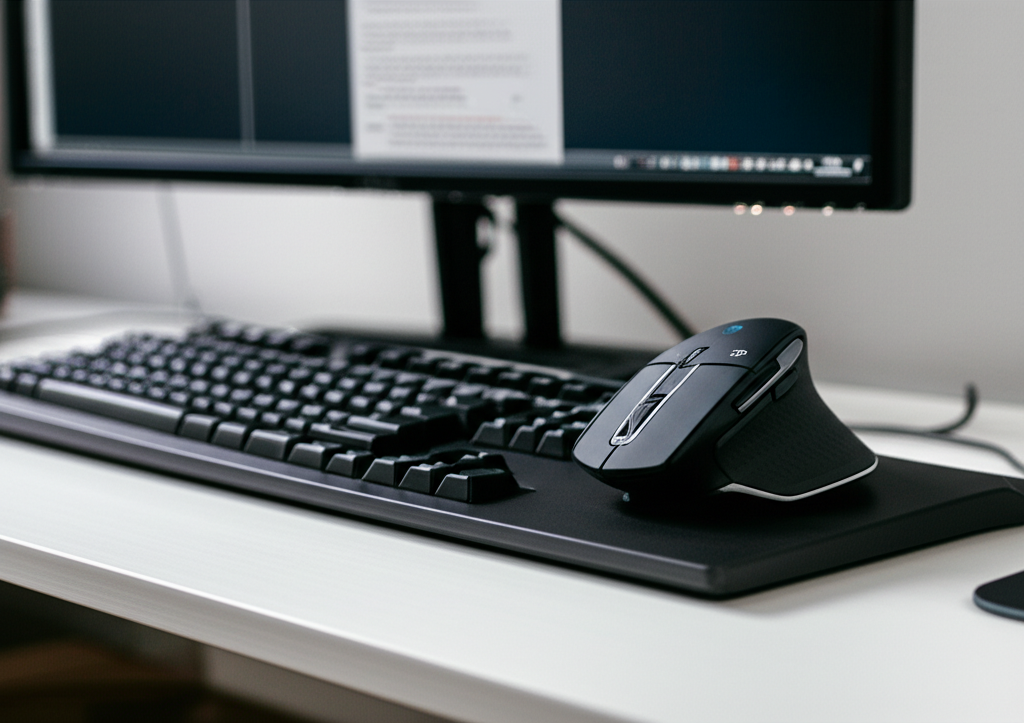
Real-world experiences are invaluable. We’ve scoured Amazon reviews to give you a snapshot of what users love and what they find less than ideal about these popular wireless keyboard and mouse sets.
Logitech MK270: Common Feedback
Positive: Users frequently praise its unbeatable price and simple plug-and-play setup. Many highlight the long battery life, appreciating not having to worry about frequent replacements. It’s often described as a reliable workhorse for everyday tasks like email, browsing, and document creation.
Negative: Some users wish for quieter keys or backlit keys for typing in dimly lit rooms. A few mention that the mouse could be a bit larger for those with bigger hands, and the build quality, while good for the price, isn’t luxurious.
Microsoft Wireless Desktop 3050: Common Feedback
Positive: The ergonomic design is a major win, with many users reporting reduced wrist strain and increased comfort during long work sessions. The quiet keys are also a frequently mentioned plus. The secure wireless connection and solid build quality contribute to its positive reception.
Negative: The main criticism is the price, which is higher than basic combos. Some users find the split keyboard layout takes some getting used to. It’s also noted that it lacks advanced features like programmable keys or backlighting.
VicTsing 2.4G Wireless Combo: Common Feedback
Positive: Customers are often impressed by the value for money, finding it a great budget-friendly option that still offers good functionality. The slim design and the convenience of multimedia shortcut keys are frequently appreciated. The adjustable DPI on the mouse is also a hit for those who like to fine-tune their cursor speed.
Negative: Feedback sometimes points to the key feel being less premium than more expensive options, with some keys feeling a bit mushy or less responsive. Build quality is considered adequate for the price but not exceptionally durable. Battery life can be a bit more variable compared to top-tier brands.
Your Buyer’s Guide: How to Choose the Right Wireless Keyboard and Mouse
With so many choices, how do you pick the best wireless keyboard and mouse for your needs? Here’s a straightforward guide to help you decide:
1. Consider Your Primary Use
General Use (Browsing, Email, Office Work): For most people, a reliable, comfortable, and affordable combo like the Logitech MK270 or a good budget option is perfect. You don’t need fancy features.
Extended Typing Sessions (Writing, Coding, Office): If you spend hours typing, comfort is key. Look for ergonomic designs, comfortable key travel, and quiet keys. The Microsoft Wireless Desktop 3050 is a strong contender here.
Gaming: While we’re focusing on everyday use, if gaming is a factor, you’ll want a wireless mouse with a high DPI and fast response rate, and a keyboard with low latency. These often come as separate purchases or in specialized gaming combos, which are typically more expensive.
2. Connectivity: Dongle vs. Bluetooth
USB Dongle (2.4GHz): Most affordable combos use a small USB receiver. This is incredibly simple: plug it in, and both devices connect. It’s usually very stable and has low latency. The downside is it uses up a USB port, and if you lose the dongle, your devices might become useless.
Bluetooth: Bluetooth allows you to connect without a USB dongle, freeing up ports. It’s also great for connecting to multiple devices (like tablets or laptops) and switching between them. However, Bluetooth can sometimes have slightly more latency or be less stable than a dedicated dongle, and setup can be a tiny bit more involved.
3. Ergonomics and Comfort
Keyboard Layout: Do you prefer a full-size keyboard with a number pad, or a compact tenkeyless (TKL) design to save desk space? Consider the key shape and spacing. For comfort, look for features like a palm rest and slightly curved keycaps.
Mouse Shape: Mice come in many shapes and sizes. If you have smaller hands, a compact mouse might be best. For larger hands, a more sculpted, full-size mouse will be more comfortable. Ambidextrous (symmetrical) mice work for both left and right-handed users, while ergonomic mice are shaped specifically for one hand.
4. Battery Life
Wireless devices need batteries. Some use AA or AAA batteries, while others are rechargeable. If you use disposable batteries, look for combos known for excellent battery life (like Logitech) to minimize replacements. Rechargeable options are convenient but require you to remember to charge them.
5. Budget
As we’ve seen, prices can range from very affordable to moderately expensive. Decide how much you’re willing to spend. Remember that you can often find excellent performance and comfort without paying a premium price.
Extra Tips for a Better Wireless Experience
Once you’ve chosen your new wireless keyboard and mouse, here are a few tips to ensure you get the most out of them:
- Keep the USB Dongle Safe: If your combo uses a USB dongle, keep it in a safe place. Many Logitech keyboards and mice have a small storage slot for the dongle, which is handy for travel or preventing loss.
- Optimize Dongle Placement: For the best wireless signal, try to keep the USB dongle relatively close to the keyboard and mouse, and avoid placing it behind large metal objects or too close to other wireless devices that might cause interference.
- Clean Regularly: Dust and debris can affect performance. Gently wipe down your keyboard and mouse with a soft, dry cloth. For tougher grime, use a slightly damp cloth (make sure it’s not wet) or a keyboard cleaning brush.
- Manage Battery Life: If you use replaceable batteries, consider using rechargeable AA/AAA batteries. This is both eco-friendly and cost-effective in the long run.
- Update Drivers (If Necessary): While most wireless combos are plug-and-play, some advanced features or specific models might benefit from driver updates. Check the manufacturer’s website if you encounter issues or want to unlock full functionality.
Common Mistakes to Avoid When Buying
To make sure you’re making the best purchase, be aware of these common pitfalls:
- Ignoring Ergonomics: If you type a lot, don’t sacrifice comfort for a slightly lower price. An uncomfortable setup can lead to strain and reduced productivity.
- Overspending on Unnecessary Features: For basic tasks, you probably don’t need a gaming-grade keyboard with mechanical switches or a mouse with 20 programmable buttons. Stick to what you need.
- Forgetting About Connectivity Type: If you want to free up USB ports, prioritize Bluetooth. If simplicity and absolute stability are paramount, a dongle might be better.
- Not Checking Battery Type: If you hate buying batteries, opt for a rechargeable wireless set. If you don’t mind, then long-life replaceable batteries are fine.
- Buying a “Silent” Keyboard That Isn’t: If quiet operation is crucial, read reviews specifically mentioning key noise levels. Some “quiet” keyboards are still quite audible.
Frequently Asked Questions (FAQ)
Here are answers to some common questions beginners have about wireless keyboards and mice:
Q1: Do I need a USB dongle for all wireless keyboards and mice?
A1: Not necessarily. Many modern devices use Bluetooth, which connects directly to your computer’s built-in Bluetooth. However, most affordable combos still use a USB dongle for simplicity and a stable connection.
Q2: Is a wireless keyboard and mouse slower than a wired one?
A2: For everyday tasks like typing and browsing, you won’t notice any difference in speed or responsiveness. High-end gaming peripherals might have a slight edge in ultra-low latency, but for the average user, modern wireless technology is excellent.
Q3: How do I connect a wireless keyboard and mouse?
A3: It depends on the type. If it uses a USB dongle, just plug the dongle into your computer’s USB port, insert batteries (if needed), and turn on the devices. If it’s Bluetooth, you’ll need to go into your computer’s Bluetooth settings, search for new devices, and pair the keyboard and mouse.
Q4: What does “ergonomic” mean for a keyboard or mouse?
A4: Ergonomic designs are focused on comfort and reducing physical strain. For keyboards, this might mean a split layout, a curved shape, or a built-in palm rest. For mice, it means a shape that fits naturally in your hand, reducing awkward wrist angles.
Q5: Can I use a wireless keyboard and mouse with my tablet or smartphone?
A5: Yes, many Bluetooth-enabled keyboards and mice can connect to tablets and smartphones. You’ll typically need to ensure your device supports external keyboards and mice, and then pair them via Bluetooth.
Q6: How long do the batteries typically last?
A6: Battery life varies greatly. Some basic combos might last a few months, while premium options can last for years on a single set of batteries. Rechargeable devices will need charging every few weeks or months, depending on usage.
Conclusion: Your Best Wireless Keyboard and Mouse Awaits
Choosing the best wireless keyboard and mouse doesn’t have to be complicated. For proven performance that balances affordability, reliability, and ease of use, the Logitech MK270 remains a top-tier choice for most everyday users. If comfort during long work hours is your priority, the Microsoft Wireless Desktop 3050 offers excellent ergonomic benefits.
Remember to consider your primary use, desired features, and budget. Whether you’re a student, a remote worker, or simply looking to declutter your desk, there’s a perfect wireless keyboard and mouse combo out there for you. With a little guidance, you can confidently make a choice that enhances your daily computing experience. Happy typing!
