

Sending an automatic email in Outlook when on leave is essential. It helps inform your contacts about your absence.
Setting up automatic replies in Outlook is a simple yet crucial task. When you are on leave, people expect timely responses. This feature ensures they know you are away and when you will return. It also helps manage expectations and maintain professional communication.
In this guide, we will show you how to set up automatic email replies in Outlook. Whether you are using Outlook for work or personal use, these steps will help you stay connected and professional, even when you are away. Let’s get started and ensure your emails are handled smoothly during your leave.
Credit: www.youtube.com
Contents
Preparing For Automatic Email Setup
Sending automatic emails while on leave ensures you don’t miss important messages. Before setting up, make sure you’re ready. Follow these simple steps to prepare for the automatic email setup in Outlook.
Checking Outlook Version
First, check your Outlook version. Different versions may have different steps.
- Open Outlook.
- Click on File.
- Select Office Account.
- Look for the version number under About Outlook.
Ensure you have a version that supports automatic replies. If not, update Outlook to the latest version.
Ensuring Internet Connection
Your internet connection must be stable. Without it, Outlook cannot send automatic emails.
- Check your Wi-Fi or Ethernet connection.
- Test by visiting a website.
- If the page loads, your connection is good.
Ensure your internet remains stable during your leave. If needed, contact your ISP for help.
Credit: www.ucl.ac.uk
Setting Up An Out Of Office Message
Setting up an out of office message in Outlook ensures that your contacts know you are unavailable. This helps manage expectations and provides them with an alternative contact. Follow the steps below to set up your automatic replies efficiently.
Accessing Automatic Replies
To set up your out of office message, start by accessing the automatic replies feature. Here’s a simple guide:
- Open Outlook on your computer.
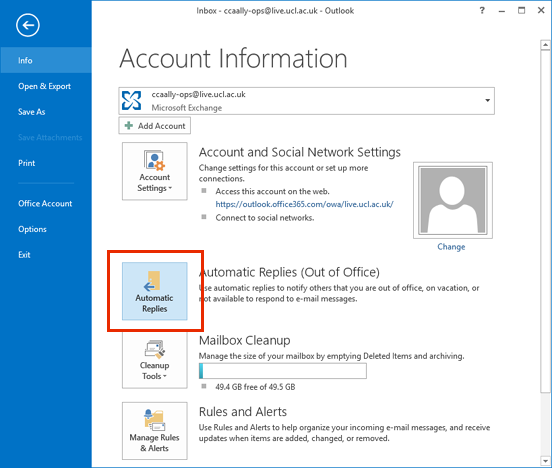
- Click on File in the top left corner.
- Select Automatic Replies (Out of Office).
If you don’t see the automatic replies option, it might be under Info.
Creating A Custom Message
Once you access the automatic replies, you can create your custom message. Follow these steps:
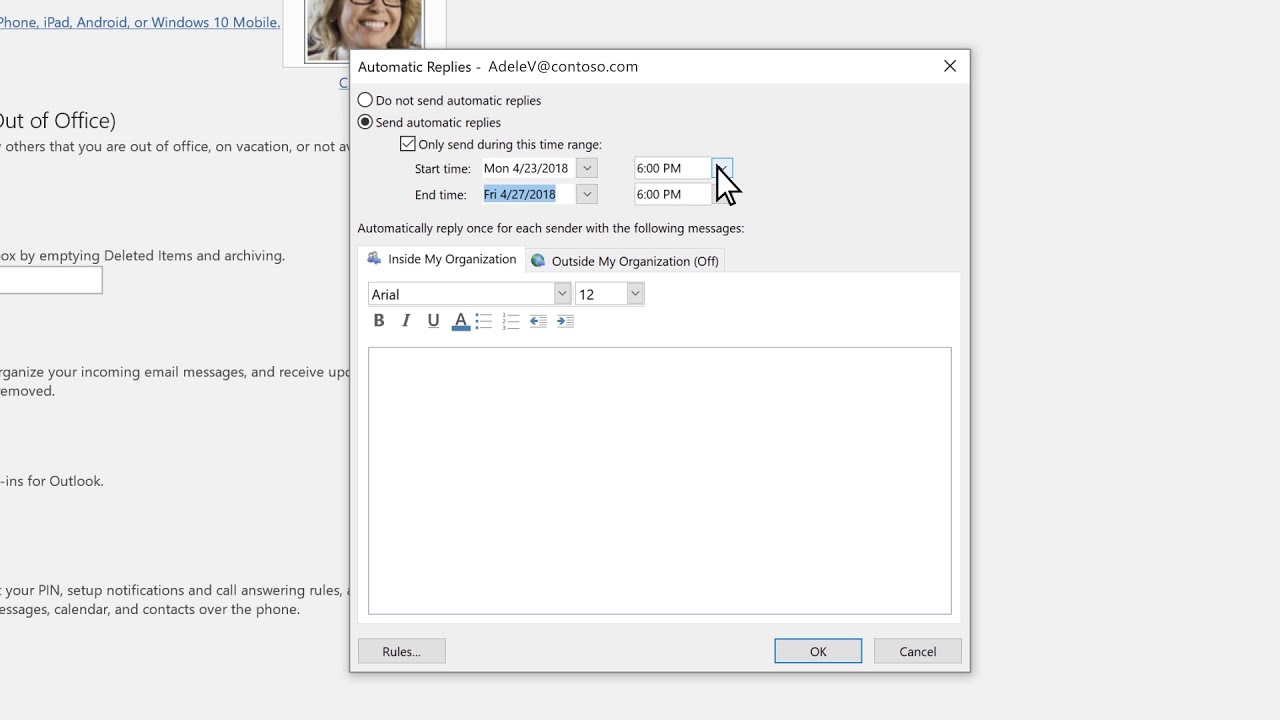
- Select Send automatic replies.
- Set the time range for your absence.
- Click on Inside My Organization tab.
- Type your custom message.
Here is an example of a simple out of office message:
Subject: Out of Office
Message: Thank you for your email. I am currently out of the office and will return on [Date]. For urgent matters, please contact [Alternative Contact].
After creating your message, you may also want to set a different message for external contacts:
- Click on the Outside My Organization tab.
- Type your custom message.
- Click OK to save your settings.
Your out of office message is now set up. Your contacts will be notified automatically during your absence.
Configuring Rules For Automatic Email
Configuring rules for automatic email in Outlook is simple. It ensures your emails are managed while you are on leave. Follow these steps to set up automatic responses.
Navigating To Rules And Alerts
First, open Outlook on your computer. Click on the File tab in the top-left corner. This will open a menu.
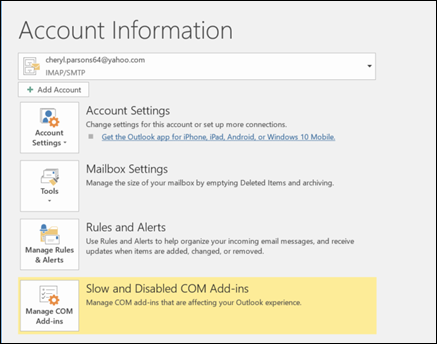
In the menu, find and click on Manage Rules & Alerts. A new window will appear. This is where you will set up your automatic email rules.
Setting Conditions And Actions
In the Rules and Alerts window, click on New Rule. Choose a template or start from a blank rule.
Next, set the conditions for your rule. For example, you may want to reply to all emails received during your leave.
To do this, select Apply rule on messages I receive. Click Next. Select the conditions that match your needs.
Then, set the actions. You will typically choose reply using a specific template. Click on a specific template to create your auto-reply message.
Write your out-of-office message. Click Save. Then, click Next and Finish.
Finally, ensure your rule is enabled. Click Apply and OK. Your automatic email rule is now set up and ready.
Testing Your Automatic Email Setup
Testing your automatic email setup is crucial to ensure everything works smoothly while you are on leave. This involves sending test emails and verifying automatic replies. Follow the steps below to confirm your automatic email setup is functioning correctly.
Sending Test Emails
To check if your automatic email setup is working, start by sending a few test emails. Use a different email account to send these test messages to your Outlook account. This will help you see if the automatic replies are triggered correctly.
- Open your alternate email account.
- Compose a new email and address it to your Outlook account.
- Send the email and wait for a few minutes.
Repeat this process with different email accounts if possible. This ensures that your automatic replies work for all incoming emails.
Verifying Automatic Replies
After sending the test emails, check your Outlook account to verify if the automatic replies were sent. Follow these steps to confirm:
- Open your Outlook email account.
- Go to the “Sent Items” folder.
- Look for the automatic replies sent to the test emails.
If you see the automatic replies in your “Sent Items” folder, your setup is working. If not, you may need to troubleshoot the settings.
Here are some common troubleshooting tips:
- Check if the automatic reply rule is active.
- Ensure you followed the correct steps for setting up automatic replies.
- Review the email addresses used for testing.
By following these steps, you can ensure your automatic email setup in Outlook functions correctly during your leave.
Troubleshooting Common Issues
When setting up automatic emails in Outlook for your leave, you might face some common issues. This section will help you troubleshoot these problems. Addressing these issues ensures your out-of-office messages work correctly.
No Replies Sent
If no replies are sent, check your automatic reply settings. Ensure the feature is turned on. Also, verify that you have set the correct start and end dates. Sometimes, the issue can be with your email rules. Follow these steps:
- Open Outlook.
- Go to File > Automatic Replies.
- Check the Send automatic replies box.
- Set the start and end dates.
- Click OK.
If the problem persists, your email account might need syncing. Go to Send/Receive and click Update Folder.
Incorrect Email Format
Sometimes, the email format can be wrong. This can confuse the recipients. To fix this, you need to check your email template. Follow these steps:
- Open Outlook.
- Go to File > Options.
- Click on Mail.
- Under Compose messages, choose the correct format.
- Click OK.
Ensure you use a simple and clear format. This helps recipients understand your message easily. For best practices, use plain text or HTML.
By troubleshooting these common issues, you can ensure your automatic emails work as intended. This keeps your communication smooth even when you are on leave.
Advanced Tips For Automatic Emails
Sending automatic emails in Outlook can save you time. It ensures your colleagues know you are away. Here are some advanced tips to make your automatic emails more effective.
Using Templates
Creating email templates can save time. You don’t have to write the same message over and over. Here’s how to create a template in Outlook:
- Open Outlook and click on New Email.
- Type your message.
- Click on File and select Save As.
- Select Outlook Template from the Save as type list.
- Give your template a name and click Save.
Now you can use this template whenever you need to send an automatic email. It’s quick and easy.
Scheduling Out Of Office Periods
Scheduling your out-of-office period is essential. It lets your colleagues know when you will be unavailable. Here’s how to do it:
- Open Outlook and click on File.
- Select Automatic Replies (Out of Office).
- Click on Send automatic replies.
- Check the Only send during this time range box.
- Set your Start time and End time.
- Type your out-of-office message.
- Click OK to save your settings.
These simple steps ensure your automatic replies are sent only during your specified period. Your colleagues will be informed of your absence, and you can relax.
Maintaining Email Security
Sending automatic emails in Outlook while on leave is helpful. But, it’s essential to keep your email secure. Here, we’ll discuss avoiding phishing attacks and protecting sensitive information.
Avoiding Phishing Attacks
Phishing attacks are common. They trick users into giving away personal information. Follow these steps to avoid them:
- Check the sender’s email address carefully.
- Don’t click on suspicious links.
- Report phishing emails to your IT department.
Using strong passwords is also important. Change your password regularly. Enable two-factor authentication for added security.
Protecting Sensitive Information
Keep sensitive information safe. Here are some tips:
- Encrypt your emails if they contain sensitive data.
- Use a VPN when accessing emails on public Wi-Fi.
- Do not share confidential information through emails.
Use these tips to keep your information secure. Your email security is important, even when you are on leave.
Frequently Asked Questions
How Do I Set An Out Of Office In Outlook?
You can set an out of office reply in Outlook by navigating to File > Automatic Replies. Enable the feature and customize your message. Set the time range if needed, and save your settings.
Can I Schedule Automatic Emails In Outlook?
Yes, you can schedule automatic emails in Outlook. Create your email, then go to Options > Delay Delivery. Set the desired date and time, and send.
How Do I Create A Rule To Forward Emails?
To create a rule for forwarding emails, go to Home > Rules > Manage Rules & Alerts. Create a new rule to forward messages based on your criteria.
Can Outlook Send Automatic Replies?
Yes, Outlook can send automatic replies. Use the Automatic Replies (Out of Office) feature to set up custom messages for incoming emails.
Conclusion
Setting up automatic emails in Outlook is simple and useful. It ensures smooth communication during your leave. Follow these steps to create an effective out-of-office message. This way, colleagues stay informed. No missed messages. No confusion. Just peace of mind while you’re away.
Take control of your email communication now. Enjoy your leave without worries. It’s an easy process and makes a big difference. Happy time off!
